
Score jurors with demographics
Put a point value on jurors' answers and let Jurybox total them into a score you can see on every card, filter by, and sort.
What scoring does
You already track demographics — occupation, prior jury service, whatever matters in your case. Scoring lets you decide what those answers are worth. You create a named score (for example "Plaintiff Fit" or "Cause Risk"), then add rules like Occupation: Nurse = +2 or Prior jury service: Yes = −1. Jurybox adds up the rules that match each juror and shows the total on their card, so you can see at a glance who is leaning your way, who needs more questions, and who to look at first when you are deciding on strikes.
A juror's score is never entered by hand. It is always the sum of their answers, so it updates the moment an answer or a rule changes. You can set up as many scores as you like, and each one can use different categories and values.
This guide walks through setting up scoring in the Jurybox web app using an example civil case. Once a case has scores, they also appear in the iPad app, and you can filter jurors by score there too.
1. Add the demographic categories you want to track
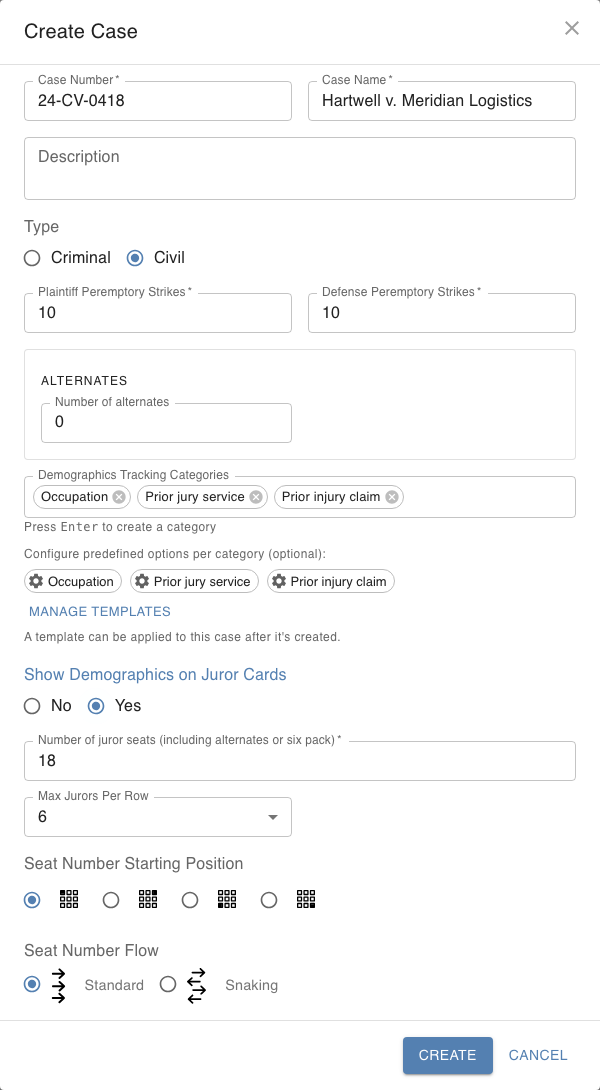
A score is built from your demographic categories, so start there. When you create a case (or edit one later), type each category under Demographics Tracking Categories and press Enter. Turn on Show Demographics on Juror Cards if you want each juror's answers — and their score — printed on their card in the jury box.
2. Open Categories, Scoring & Statuses
Open the case and click the gear icon beside the case name (its tooltip reads "Edit categories, scoring & statuses"). Everything below happens in this window.

3. Give each category a list of answers
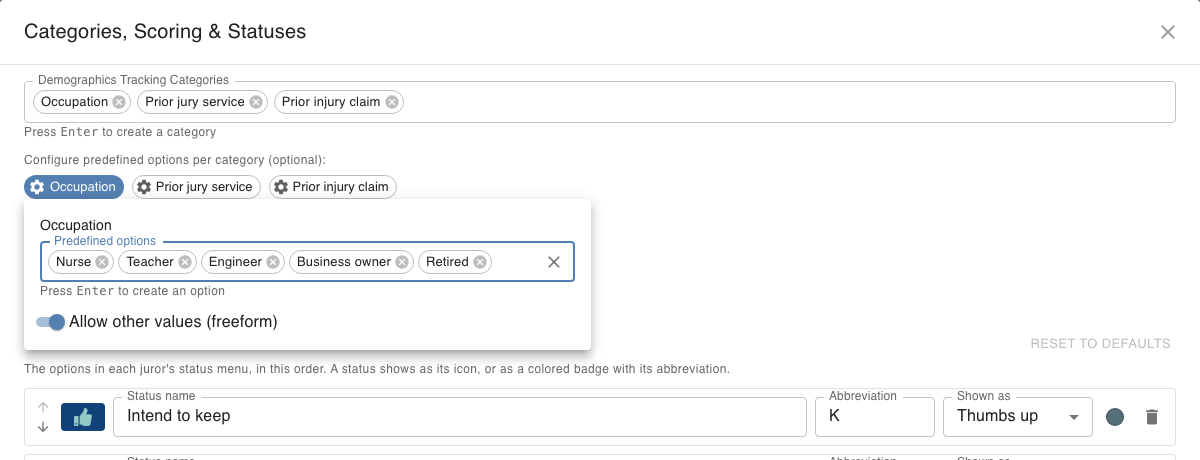
Under Configure predefined options per category, click a category. Type each possible answer into Predefined options and press Enter after each one. Repeat for every category you will score on.
Scoring rules match the answer exactly, so a fixed list keeps "Nurse" from being typed three different ways. The Allow other values (freeform) switch decides whether someone can still type an answer that is not on the list. Leave it on for categories where you can't predict every answer, such as occupation; switch it off for simple Yes/No questions.
4. Add a score
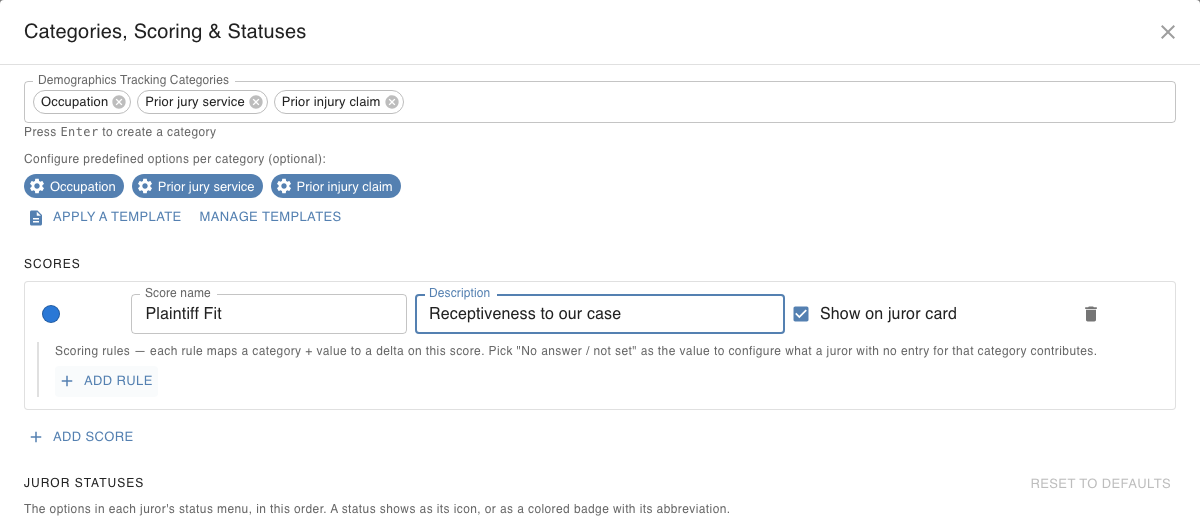
In the Scores section, click Add score. Give it a Score name — this is what shows up in filters and charts — and, if you like, a Description as a reminder of what it measures.
Keep Show on juror card checked to display the score as a small badge on each juror card. The colored dot at the left sets the badge color, which is useful once you have more than one score. Uncheck the box for a score you want to keep off the cards: you can still filter and sort by it, but it is left out of the analytics chart described in step 9.
5. Add scoring rules
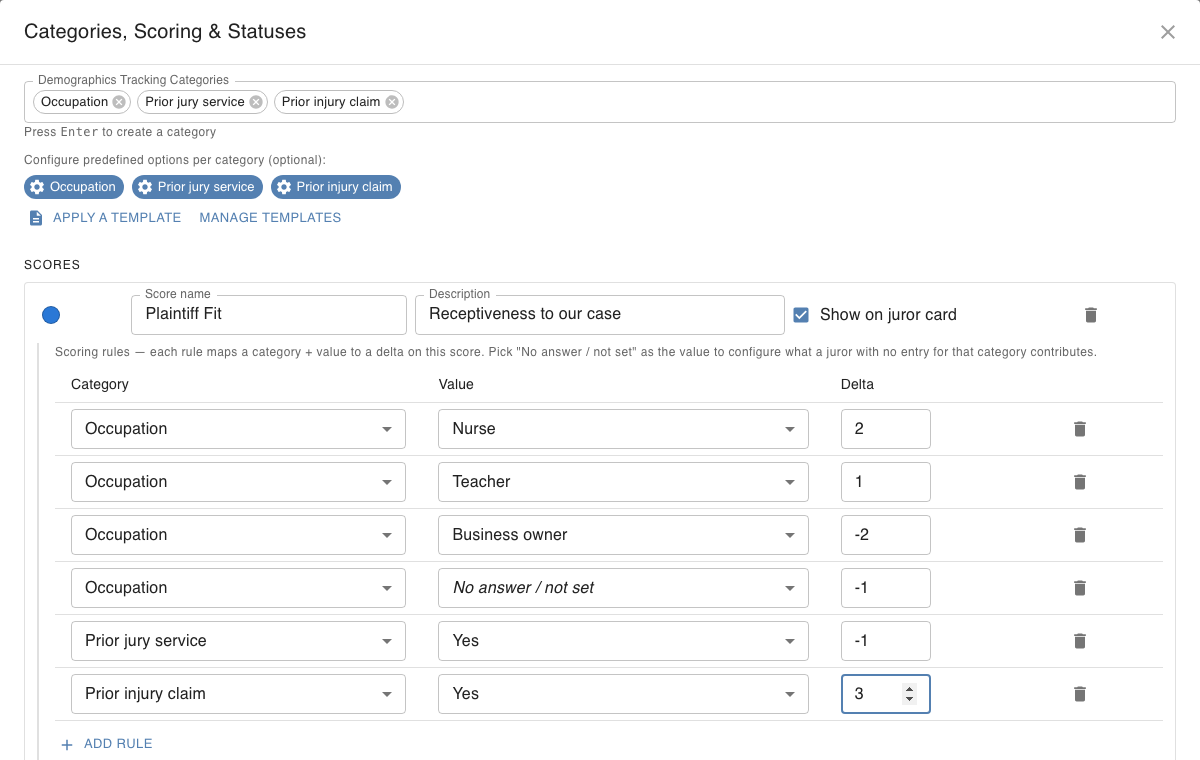
Beneath the score, click Add rule. Each rule is one row with three choices:
- Category — which demographic the rule looks at.
- Value — the answer the rule applies to, picked from that category's list. The first entry, No answer / not set, applies to a juror who has no answer recorded for that category yet.
- Delta — the number of points to add. Use a positive number to raise the score and a negative number to lower it.
Here are the six rules used in the screenshots in this guide:
| Category | Value | Delta |
|---|---|---|
| Occupation | Nurse | +2 |
| Occupation | Teacher | +1 |
| Occupation | Business owner | −2 |
| Occupation | No answer / not set | −1 |
| Prior jury service | Yes | −1 |
| Prior injury claim | Yes | +3 |
Click Save when you are done. A few things worth knowing:
- An answer with no rule is worth 0. You only need rules for the answers that should move the score — in the example, "Prior jury service: No" has no rule because it neither helps nor hurts.
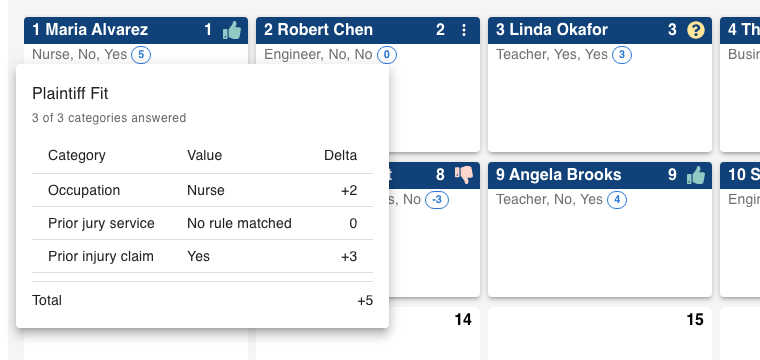
- A juror's score is the sum of every matching rule across all categories. A nurse with a prior injury claim and no prior jury service scores 2 + 0 + 3 = +5.
- Change a rule later and every juror's score changes with it — there is nothing to re-enter.
6. Record jurors' answers
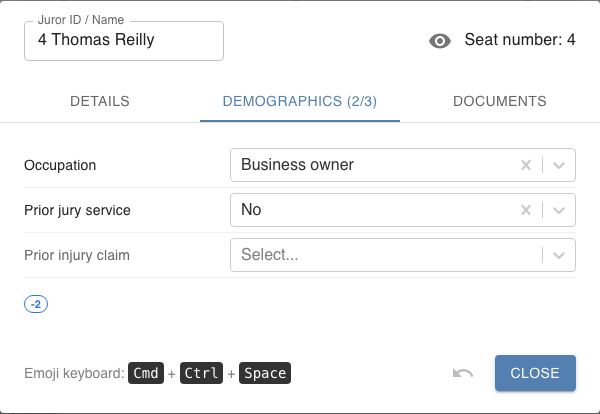
Open any juror card and choose the Demographics tab. Each category you set up is there as a dropdown of your predefined options. The tab title shows how many categories are answered — "2/3" below — and the score appears under the fields and updates as you pick answers.
To apply the same answer to several jurors at once, use the multi-select button at the top of the case (see "Add a note to multiple jurors at once" in the how-to guide). Jurors you import from a CSV file can have their demographic columns mapped to your categories as well.
7. Read the score on each card
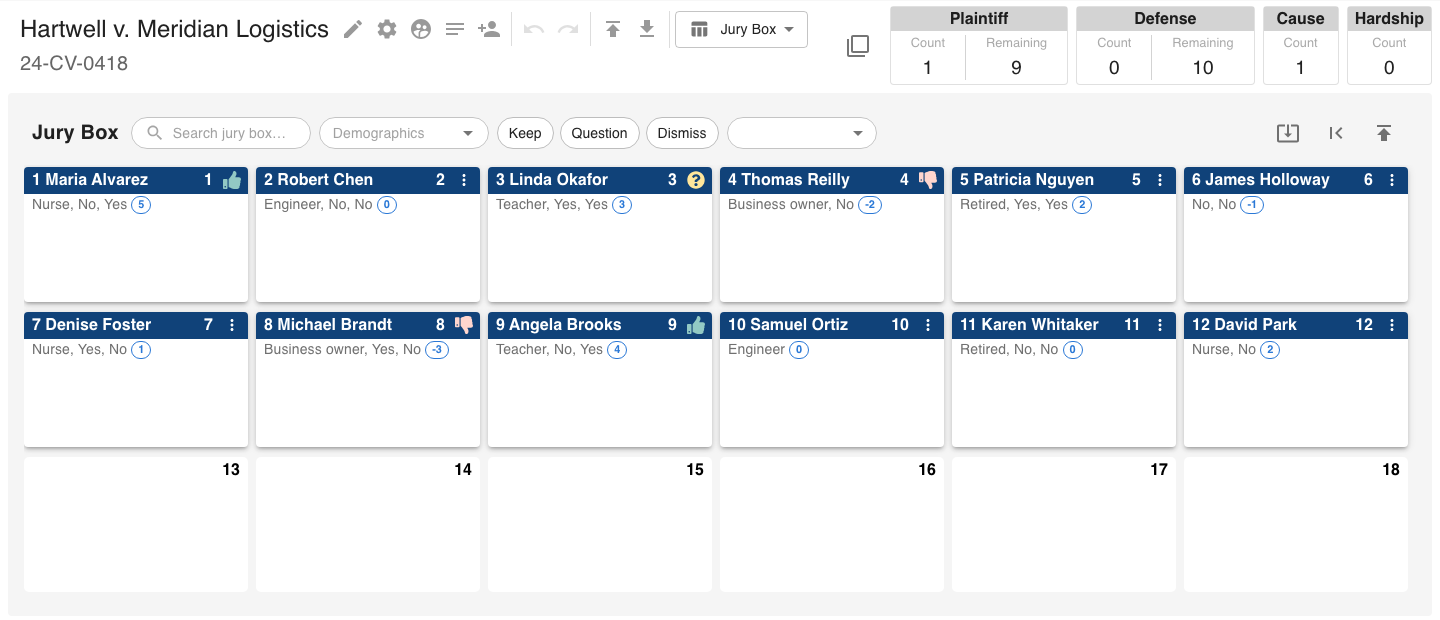
With Show on juror card turned on, each juror's total appears as a small badge next to their demographics — in the jury box, the dismissed area, and the jury pool. Hover over a badge to see the score's name and how many categories have been answered.
Click a badge to see exactly how the number was reached. The breakdown lists each category, the juror's answer, and the points it contributed, plus how many categories are answered. "No rule matched" means the juror answered but you have no rule for that answer (worth 0); "No answer" means nothing has been recorded yet.
Pay attention to that "answered" count. A juror who scores 0 because you haven't asked the questions yet is very different from one who scores 0 after answering everything.
8. Filter jurors by score
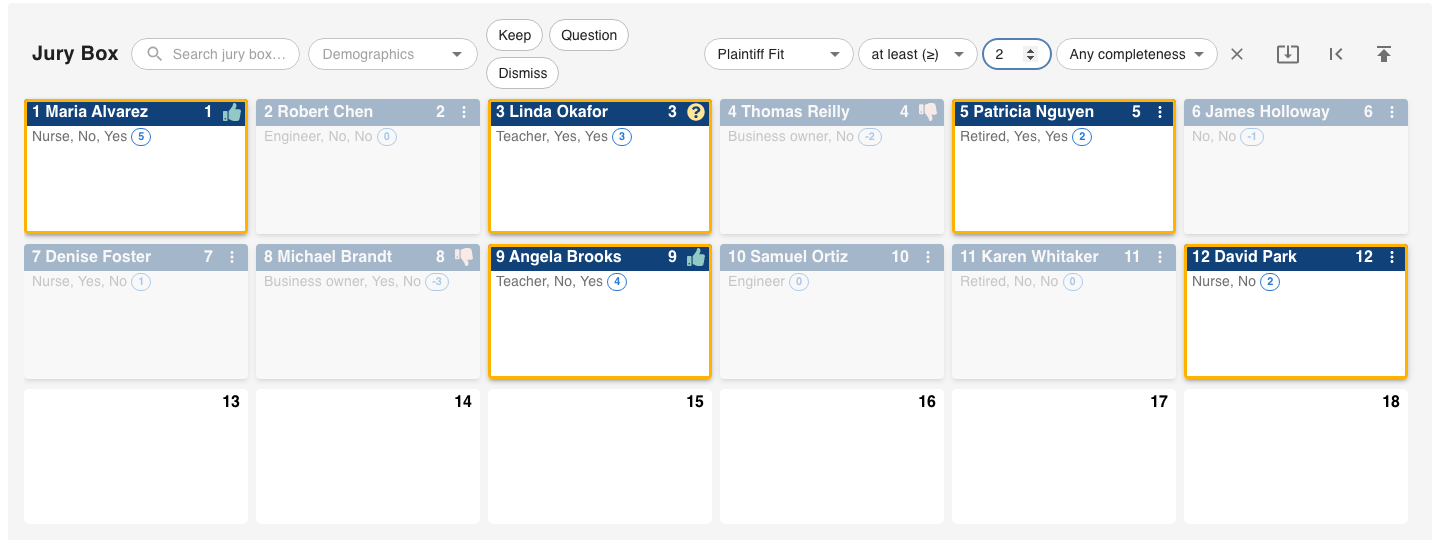
Above the jury box, dismissed area and jury pool is a score filter. Choose a score, then how to compare it — at least, at most or between — and the number. Jurors who match are outlined and everyone else is dimmed, so you can see who clears the bar without losing sight of the rest of the box.
The last dropdown is a completeness setting: Any completeness, ≥ half answered or Fully answered. Use it to ignore scores that are based on too few answers. The filter applies to the box, the dismissed area and the pool together, and the X clears it.
9. Sort and compare
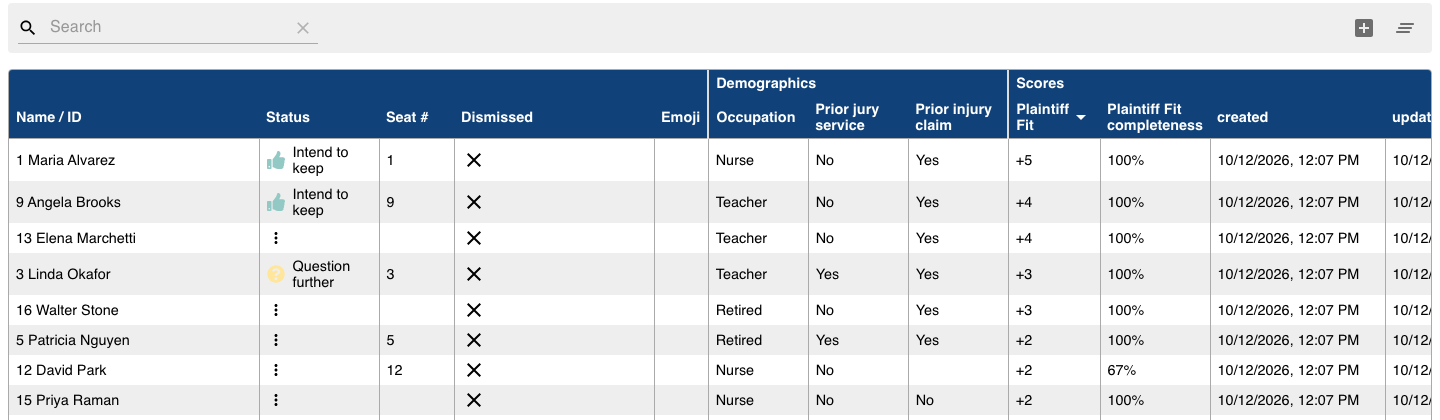
Switch the case view from Jury Box to Data for a table of every juror. Each score gets two columns — the score itself and its completeness — and you can click either column heading to sort. It is the quickest way to see your highest- and lowest-scoring jurors, including the ones still in the pool.
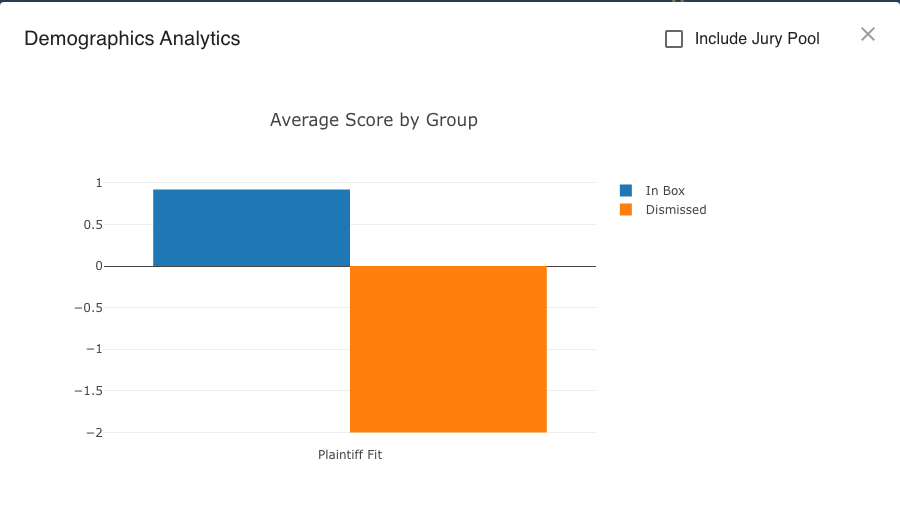
The Demographics Analytics window (the two-people icon beside the case name) adds an Average Score by Group chart that compares the average score of jurors in the box with those you have dismissed, and with the pool when you tick Include Jury Pool. If your dismissals are consistently lower-scoring than the box, your strikes are following your scoring; if not, it is a prompt to ask why.
Tips
- Reuse your setup with templates. If you score every case the same way, define the categories, options and scores once as a template (Manage templates in the same window) and use Apply a template on each new case. Templates can also be shared with colleagues so the whole team scores consistently.
- Use more than one score. A "Plaintiff Fit" score and a separate "Cause Risk" score answer different questions, and each can have its own color, rules and filter.
- Keep it to what you can defend. A score is a note-taking aid, not a verdict. Peremptory strikes cannot be based on race or gender, so build scores from case-relevant answers like experience, occupation and attitudes rather than protected characteristics. Our peremptory challenge strategy article covers where those limits come from.
- Start small. Three or four categories with a handful of rules is usually plenty. You can always add more rules once you see how the scores behave on a real panel.
Questions or something not behaving the way you expect? Email support@juryboxapp.com.