
Set up passkeys for your Jurybox account
Sign in with Face ID, Touch ID, Windows Hello, or a security key — no password needed.
What is a passkey?
A passkey is a modern, phishing-resistant replacement for passwords. Instead of typing a password, you approve sign-in with the same unlock method you already use on your device — Face ID, Touch ID, Windows Hello, or a hardware security key like a YubiKey. There is nothing to remember and nothing that can be guessed or stolen in a data breach.
Jurybox supports passkeys on the web app in two ways: you can choose a passkey as your sign-in method when you first create your account, or add one to an existing account at any time from the Account page. Both are covered below.
Option 1: Create a passkey when you sign up
When creating a new account at app.juryboxapp.com/signup, you first verify your email address, then fill in your account details. On that screen, under "How would you like to sign in?", select the Passkey tab.
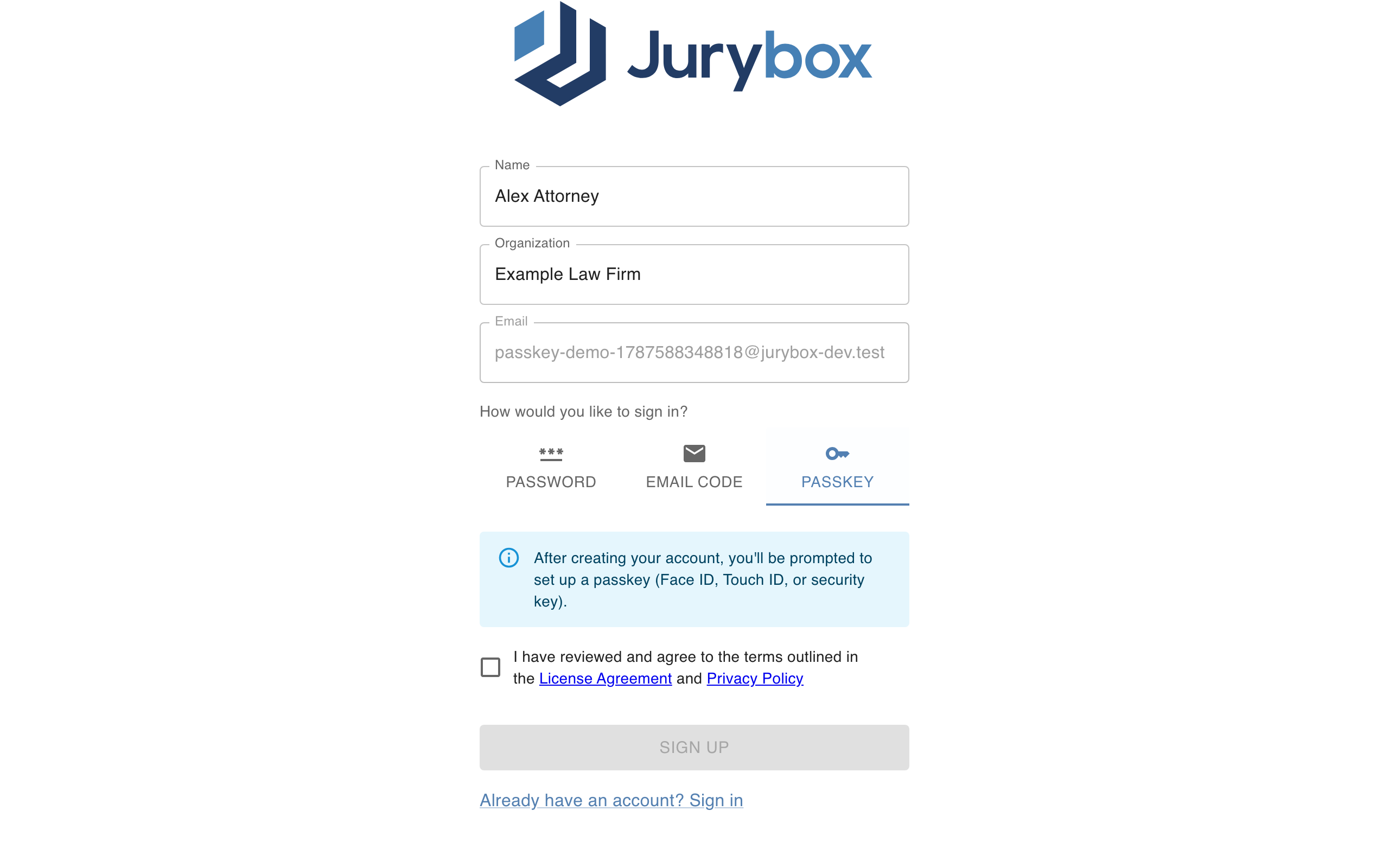
After you agree to the terms and click Sign Up, your browser will prompt you to create a passkey. Approve the prompt with Face ID, Touch ID, Windows Hello, or your security key, and you're done — your account is created and your passkey is ready for future sign-ins. It appears in your account as "Initial passkey", and you can rename or manage it from the Account page at any time.
Option 2: Add a passkey to an existing account
Already have a Jurybox account? You can add a passkey in under a minute:
1. Sign in to the web app and click ACCOUNT in the upper right corner. In the Account Info section, click the Passkeys button.
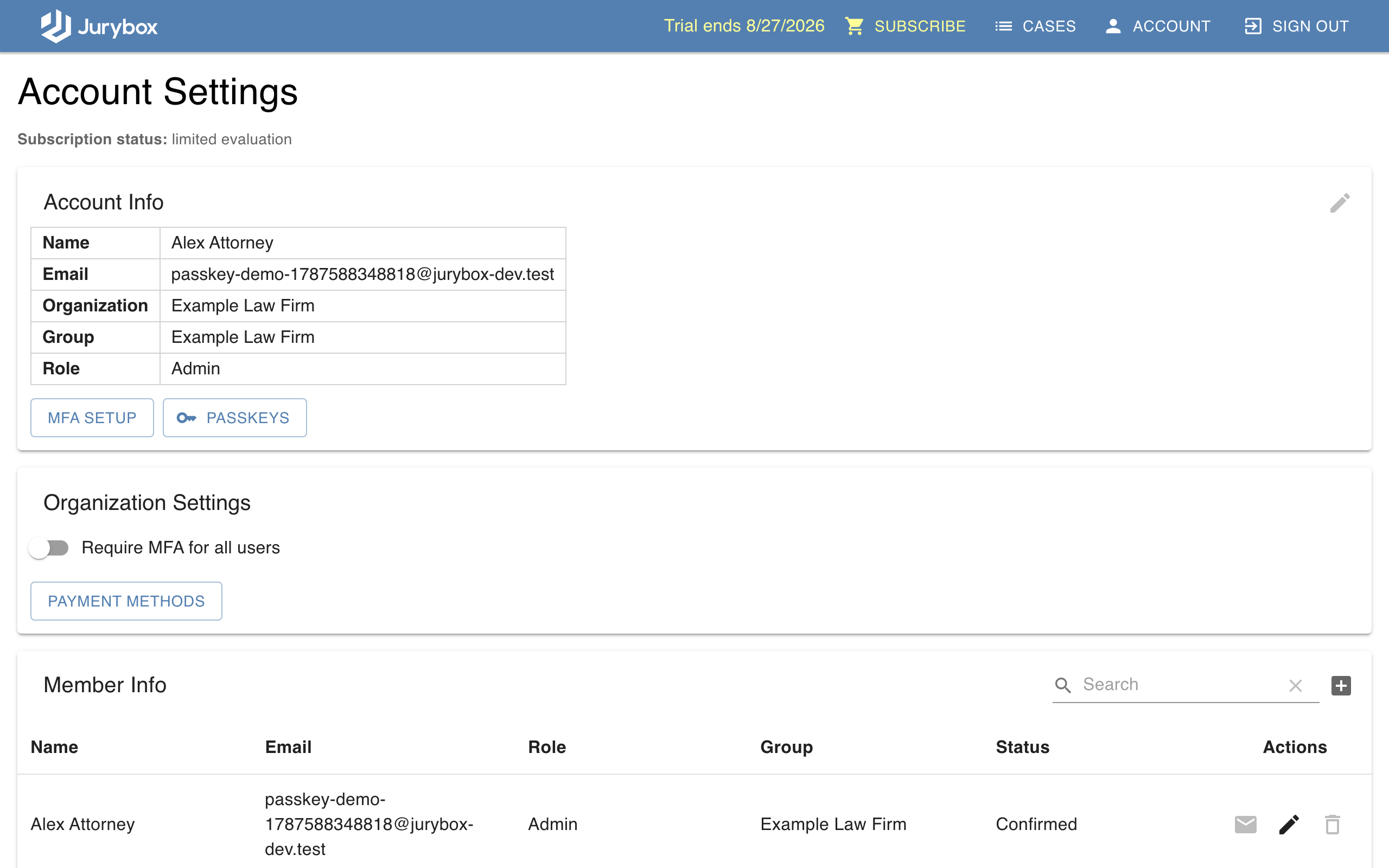
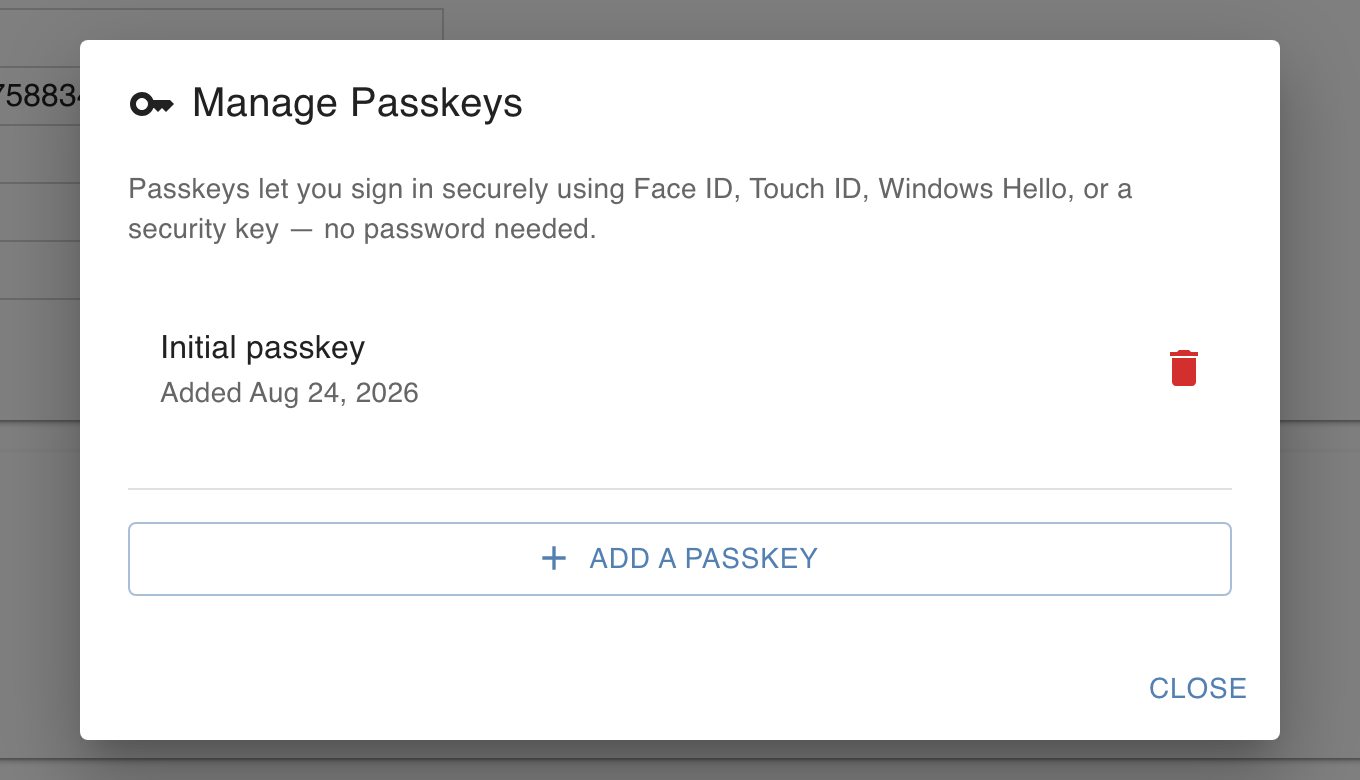
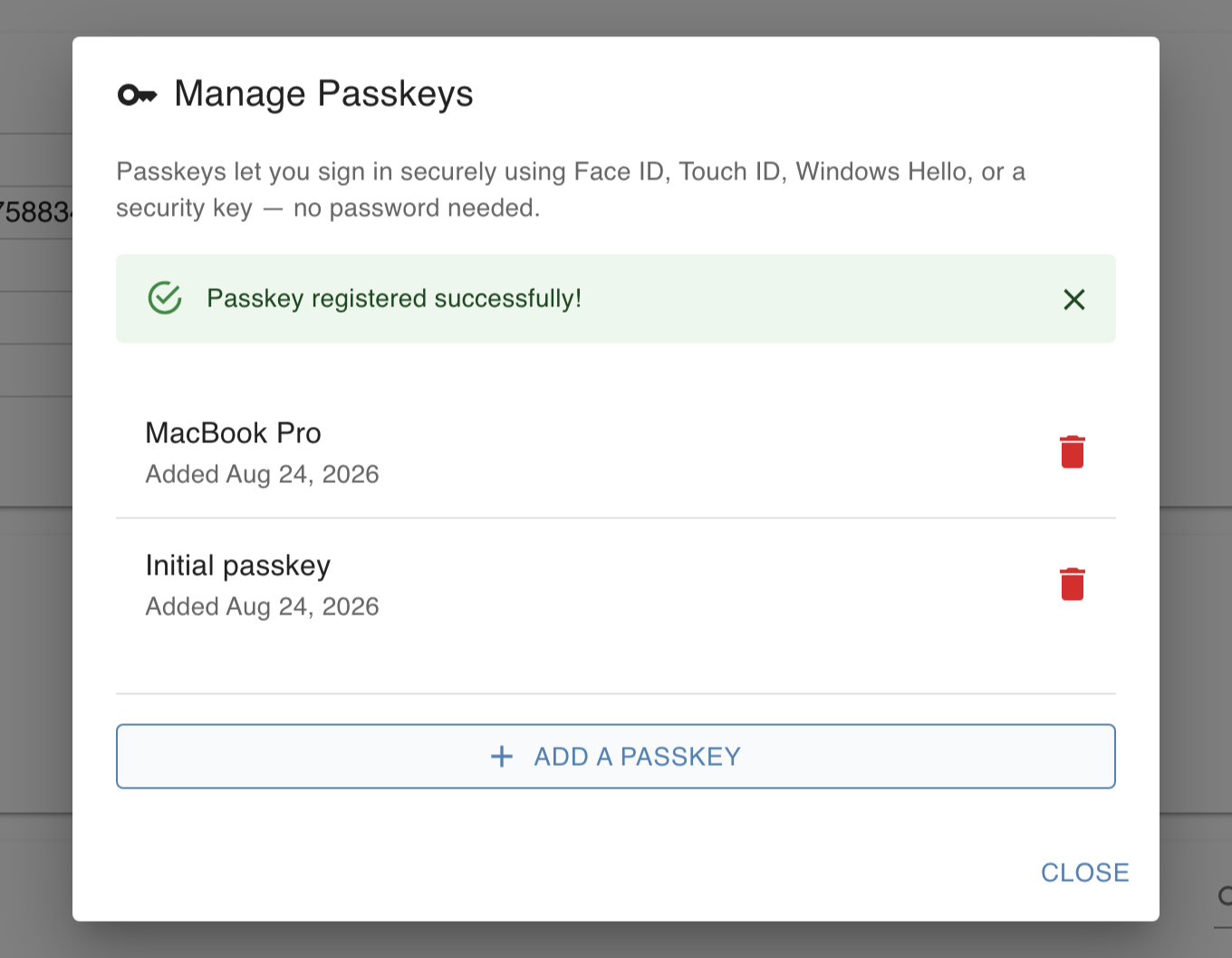
2. The Manage Passkeys window lists any passkeys already on your account. Click Add a Passkey.
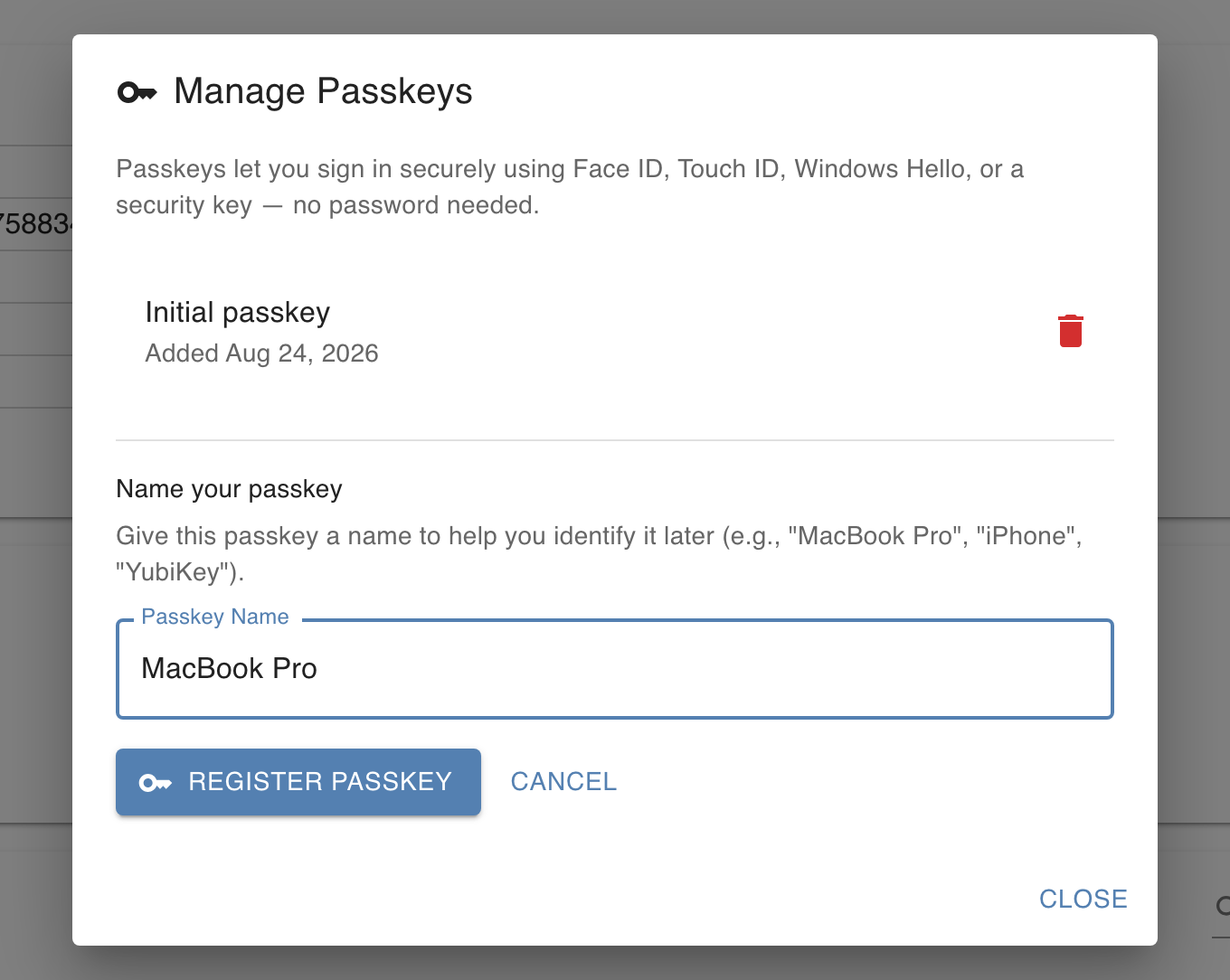
3. Give the passkey a name that tells you which device or key it lives on — for example "MacBook Pro", "iPhone", or "YubiKey" — then click Register Passkey.
4. Your browser will prompt you to approve the new passkey with Face ID, Touch ID, Windows Hello, or your security key. Once you approve, the passkey is registered and appears in your list.
Signing in and managing your passkeys
The next time you sign in, choose the passkey option on the sign-in screen and approve the browser prompt — no password required.
A few tips: passkeys created with iCloud Keychain or Google Password Manager sync automatically across your devices, while a passkey on a hardware security key stays on that key — so add a passkey for each device or key you regularly use for trial work if yours don't sync. If you retire a device or key, open Manage Passkeys and click the trash icon next to its passkey to remove it. Passkeys work alongside your other sign-in methods rather than replacing them, and your email address is verified no matter how you signed up — so even if you lose every device holding a passkey, you can always regain access through the password reset link on the sign-in page, then register a new passkey.